






















































-500x500.jpg)






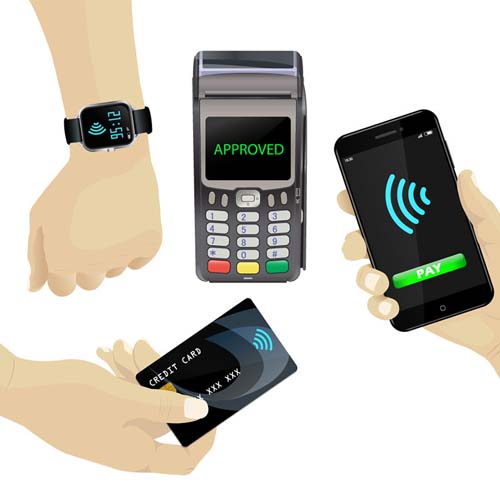





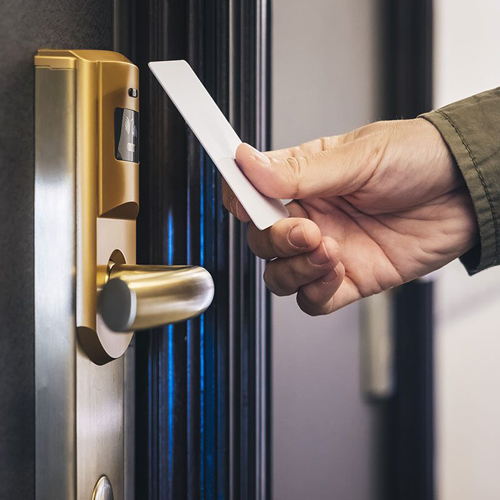
Smart card readers underpin a huge range of secure systems, from building access and identity verification to payment processing and healthcare authentication. When they stop working, the cause is rarely obvious but often falls into a small number of categories. This guide covers the three most common, with guidance for each.
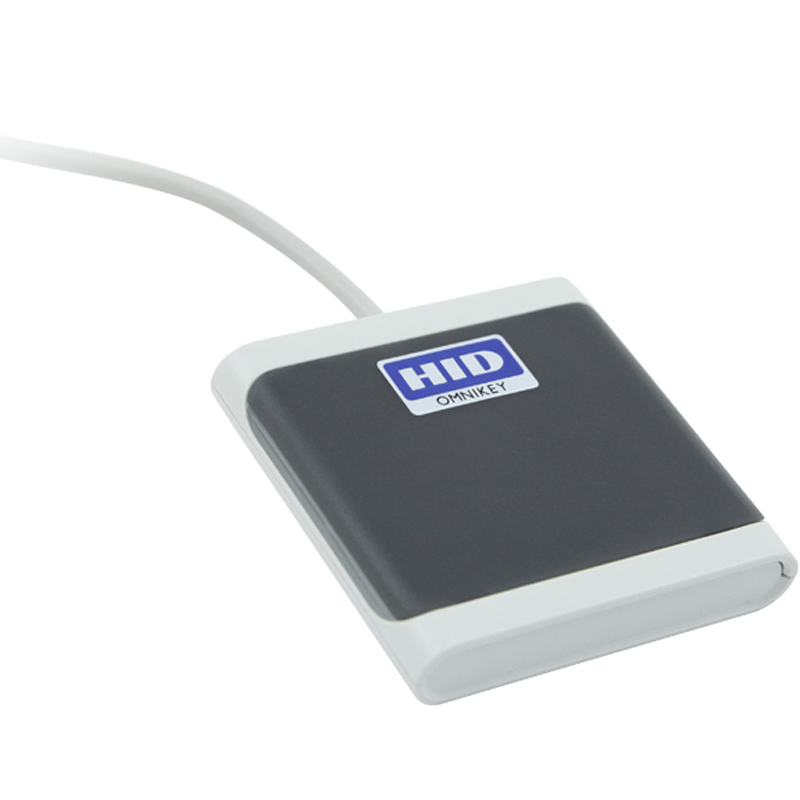
HID Card Reader Troubleshooting: The Reader Isn't Detected
Detection failures are among the most frequently reported concerns. Run through these basics first:
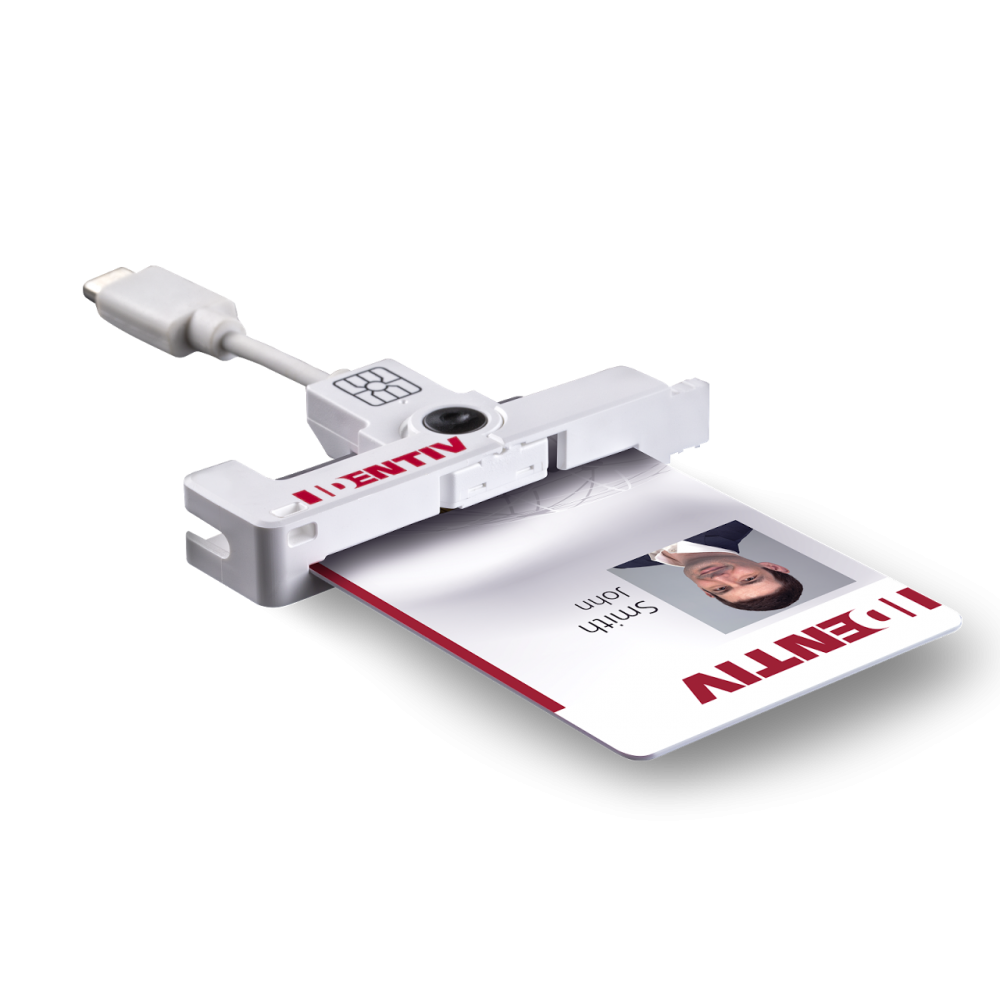
Ensure the USB smart card reader is firmly connected and that the connectors are free from debris.
Try an alternative USB port to rule out a fault with the receiving device.
If your reader still isn't detected after these initial steps, continue with these advanced checks:
On Windows, open Services via Services.msc, locate Smart Card, and confirm the status reads “Running”. If stopped, right-click and select Start. Verify via an elevated command prompt by running “sc queryex scardsvr “. If the service fails to start, check that the Windows Driver Foundation service is also running, as SCardSvr depends on it.
Look for Driver Issues with Device Manager
Open Device Manager and expand the Smart card readers section. If the reader shows a warning flag or DNF (Driver Not Found) status, Windows cannot locate a compatible driver. Right-click the device, select Uninstall device, and tick the option to delete the driver software. Download the latest driver from the manufacturer's website, reinstall, then reconnect. If the reader still doesn't appear, use the Action menu and select “scan for hardware changes”. For HID devices, visit HID Global to find drivers for your card reader.
Check Whether a Recent OS Update Is the Cause
Windows security updates have, on occasion, disrupted smart card reader functionality by overwriting registry entries or installing conflicting drivers. If a reader stops working after an update, open Event Viewer, then navigate to Applications and Services Logs > Microsoft > Windows > SmartCard. In persistent cases, reinstalling the driver in Safe Mode can help, as it prevents other processes from interfering during installation.
For Mac Users
Use the pcsctest utility in Terminal to confirm whether the reader is recognised and returns an Answer to Reset (ATR) when a card is inserted. If the reader is listed but no ATR appears, the driver installation has not completed correctly.
Card Reader Issues: The Card Is Presented but Not Read
This is distinct from a reader detection failure. If the reader is visible to the system but the card is not recognised, test it with other cards first to determine whether the problem is with the card or the reader.
Once you’ve confirmed where the problem lies, try these steps:
Check the Physical Condition of the Card and Reader
Scratches can compromise the chip on a contact card, while dust or moisture on the contact points creates a barrier to communication. Clean the card with a lint-free cloth and use a manufacturer-approved cleaning card to clear debris from the reader's internal contacts. Use the manufacturer’s recommended cleaning method; cleaning cards are the safest general option for many readers.
Confirm that Card and Reader Frequency Are Compatible
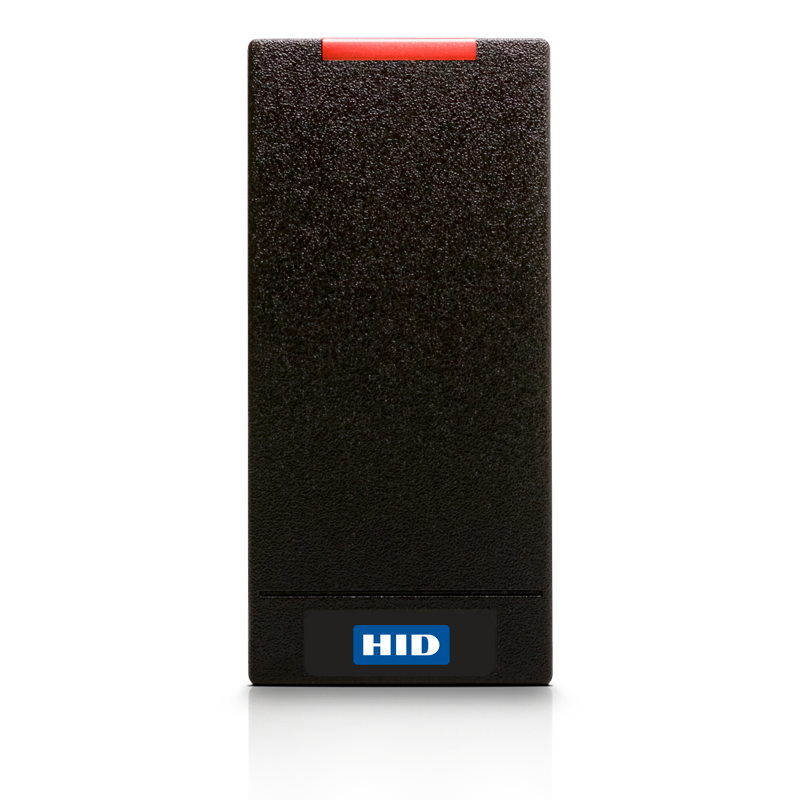
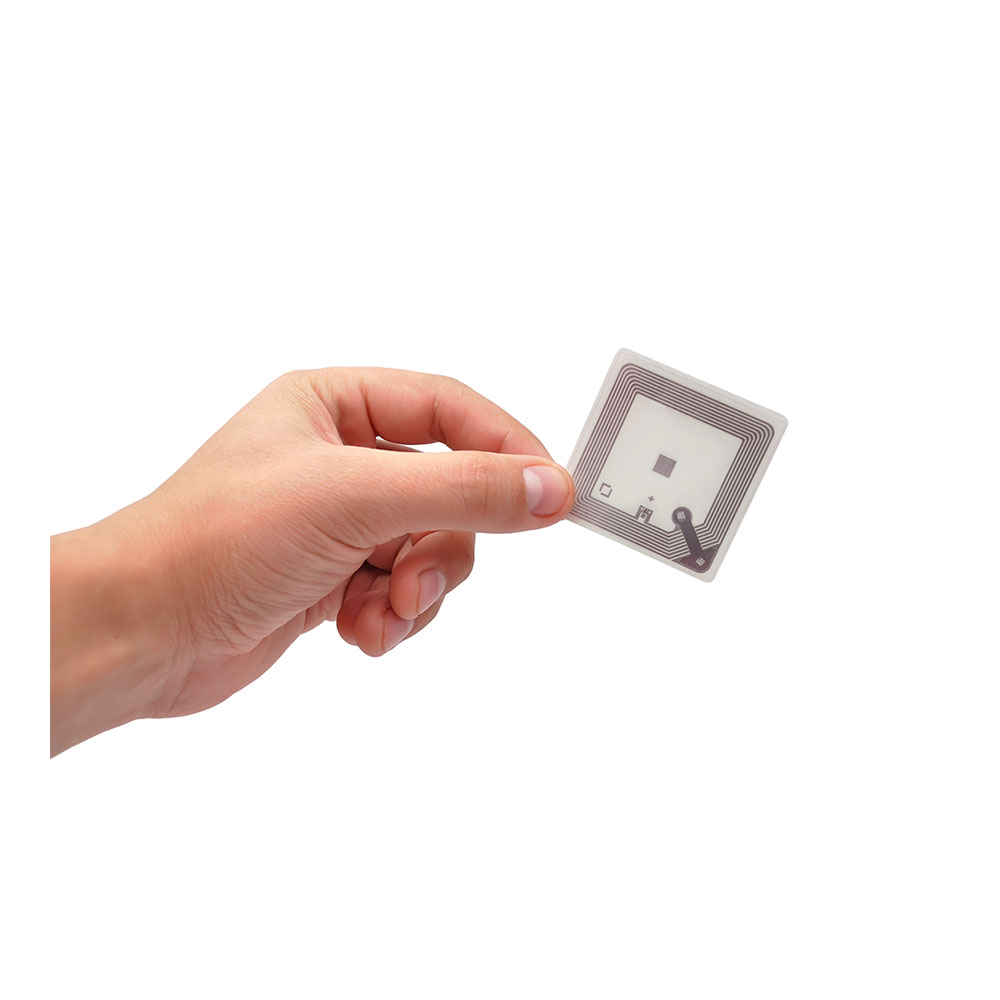
This is a commonly overlooked cause of card reader issues in access control environments. Depending on the model, HID readers support different credential technologies that are not universally interchangeable: 125 kHz Proximity (HID Prox), 13.56 MHz iCLASS, MIFARE, DESFire, and the more recent SEOS platform. Presenting a card to a reader running a different frequency will produce no response, because the reader cannot detect a signal it is not configured to receive. For iCLASS and MIFARE cards, the reader and the card undergo mutual authentication, so if the security keys held within both devices don't match, the transaction will fail even if the frequency is correct.
Check the Power Supply
Power instability or voltage drop can cause intermittent failures in some reader/card setups and will typically present as intermittent rather than consistent. If multiple readers share a single power source, confirm it is rated for simultaneous transactions.
Smart ID Card Printer Troubleshooting: Encoding Problems Presenting as Reader Failures
A card that has been incorrectly encoded will appear physically intact, may show as present in diagnostic tools, but may consistently fail at every reader it's presented to. This is a frequent source of confusion in troubleshooting smart ID card printers, as the problem begins with card personalisation.
Isolate the Problem: Is the Issue the Card or the Reader?
Present a known-good card from an existing working batch at the same reader. If it reads successfully, the fault is in the new batch. If it also fails, the reader or access control panel is the starting point.
Check the Encoding Against the Reader's Structure
Cards encoded with chips such as DESFire EV2 or Java Card must be written with the correct application identifiers, file structures, and security keys that match the reader's configuration. Confirm that the application identifier (AID), file layout, and key set all match the reader's specification, and check whether any encoding parameters changed between the last successful batch and the current failing one.
Need Card Reader Troubleshooting Support?
If the steps above haven't resolved the issue, contact your manufacturer or reseller support with the reader model, firmware version, card type, and chip specification. You should also provide error codes and make it clear whether the fault appeared after a recent system change.
Explore our full range of smart card readers and HID card readers to find the right match for your system. Or if you'd like advice on card reader compatibility or troubleshooting, get in touch with our team. We're happy to help.